New: load your travel card immediately via your phone
New on the TCL app!
Two new features are now available on the TCL app (iOS and Android):
- Buy tickets and season tickets directly on the TCL app. All the services of the online agency (boutique tcl.fr) are now available in the app.
Please note that you can still use our website, our distributors or make an appointment at the agency, to carry out your formalities.
- Recharge a ticket or pass on your TCL or Oùra card with your phone and travel immediately(see compatible cards below).
💡 To take advantage of these features, remember to update your TCL app.
How do I recharge my card with my phone?
(Hard card and not paper reloadable ticket)
.png)
It's quick and easy! Once you've purchased your title in the "Titles" tab, follow these steps:
1- Click on "Load" to travel right away with your card
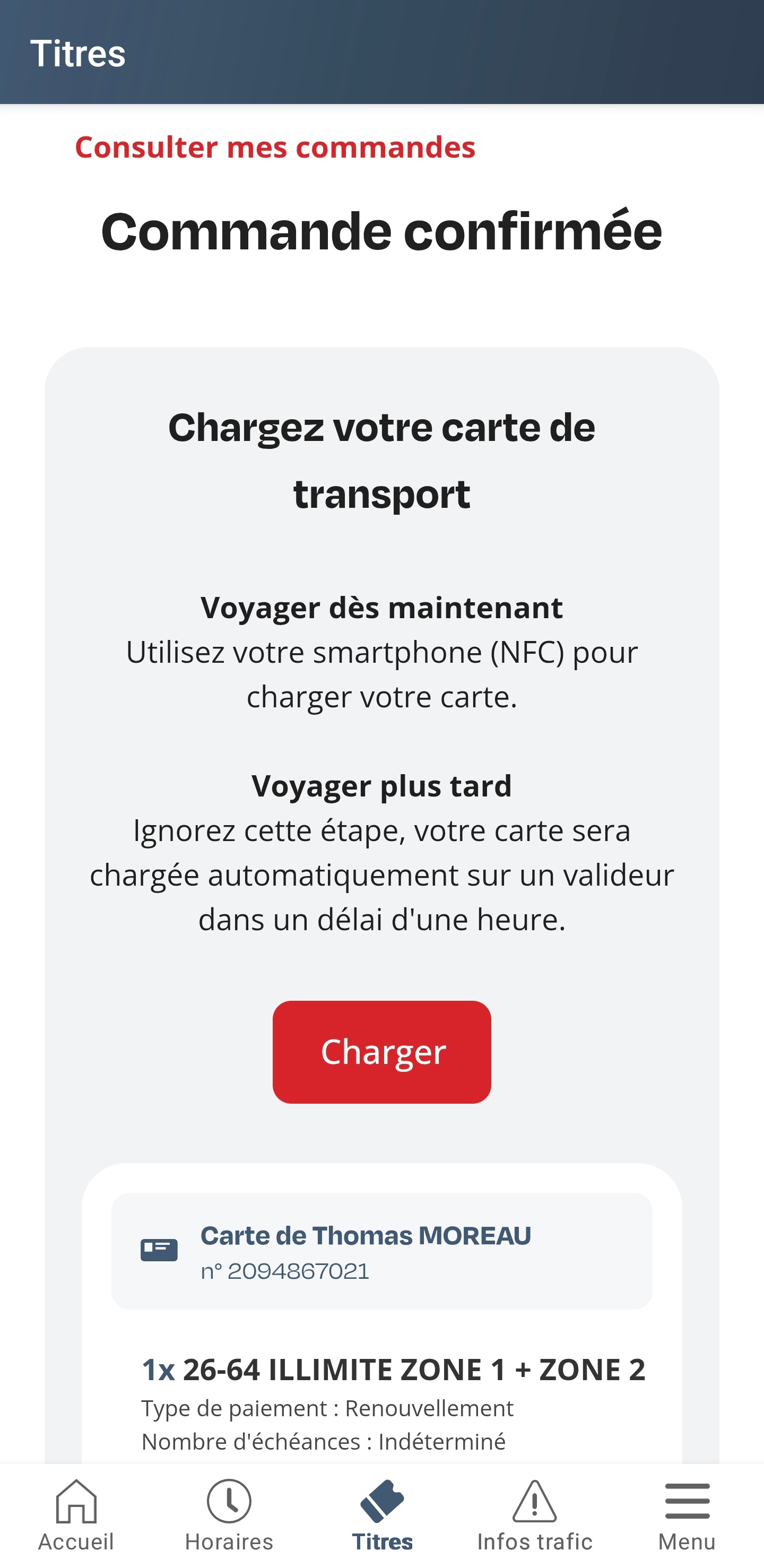
2- Accept the settings requested by the TCL app
3- Place your compatible transport card (TCL or Oùra) directly on the back of your phone.
4- Hold the position for a few seconds, until you hear the validation message: your ticket is loaded immediately!
Is my card compatible with immediate reload?
✔️ Yes: If your TCL or Oùra card (traveling on the TCL network)has the hoplink logo, on the back bottom right. 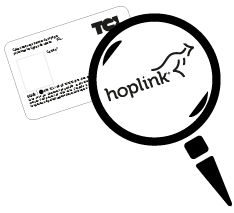
You can top up your card after purchase and travel straight away on the network.
❌ No: For cards without the hoplink logo (old cards). They are not compatible with charging via the TCL app. After your purchase, you will have to wait 1 hour before you can travel. Your ticket will then be automatically loaded onto the card when you pass over a validator.
Note: the rigid card is different from a reloadable (paper) ticket. This feature does not work with reloadable tickets.
How to reload several cards?
With this new feature, it is possible:
- To buy several tickets at the same time
- To recharge several cards linked to your account (child, spouse...) provided you physically have the named cards
In the "Tickets" tab, the various cards linked to accounts appear. In this case, the "Load immediately" button redirects the user to their card wallet, where an "Update card" action is proposed for each card concerned.
If you don't have all the cards physically with you, the titles purchased will be automatically put on the card after 1 hour, upon validation.